Introduction:
In this tutorial you will learn how to install the latest version of BackTrack (BackTrack 4 R1) to your USB flash drive. Not only will you be able to boot BackTrack off of a flash drive, but it will also allow you to have persistent changes. This tutorial will also work for previous versions of BackTrack.
Tools and Material:
- USB Flash Drive – 8GB minimum
- DVD of BackTrack 4 R1 (or previous version)
Partitioning the Flash Drive:
All of this tutorial will be done from the command line. So the first step is to pop in the disk and flash drive and select the first option when you are greeted by the BackTrack boot up menu. This will eventually leave you with a command prompt, which is where we will begin.Now that we have a prompt, we must determine which drive our flash drive is. We accomplish this by running the command:
dmesg | egrep hd.\|sd.This will give us a list of all drives on the machine. From there you need to select which one is yours. I will use sda in my examples, but yours may be different and you should substitute as necessary.
We will be using fdisk to create the partitions for our Flash Drive.
fdisk /dev/sdaDelete the existing partitions, there may be more than 1. Input the commands that are bolded.
Command (m for help): dCreate the first partition
Partition number (1-4): 1
Command (m for help): nCreate the second partition:
Command action
e extended
p primary partition (1-4)
p
Partition number (1-4): 1
First cylinder: <enter>
Using default value 1
Last cylinder, +cylinders or +size{K,M,G}: +2000M
Command (m for help): nSet the partition type of the first partition to vfat/fat32
Command action
e extended
p primary partition (1-4)
p
Partition number (1-4): 2
First cylinder: <enter>
Last cylinder, +cylinders or +size{K,M,G}: <enter>
Command (m for help): tSet the partition type of the second partition to Linux
Partition number (1-4): 1
Hex code (type L to list codes): b
Changed system type of partition 1 to b (W95 FAT32)
Command (m for help): tSet the first partition to active
Partition number (1-4): 2
Hex code (type L to list codes): 83
Command (m for help): aWrite out the current partition table to the disk
Partition number (1-4): 1
Command (m for help): wFormat the partitions, substituting your drive for sda as neccessary
mkfs.vfat /dev/sda1
mkfs.ext3 -b 4096 -L casper-rw /dev/sda2
Mounting and Copying Files:
Next we need to mount the flash drive that we just made partitions onmkdir /mnt/sda1Then we will use rsync to copy the files from the DVD to the flash drive.
mount /dev/sda1 /mnt/sda1
cd /mnt/sda1
rsync -r /media/cdrom0/* .
Installing grub:
Now that we’ve copied all of the files over, we must now install a bootloader on the flash drive.grub-install –no-floppy –root-directory=/mnt/sda1 /dev/sda
Persistent Changes:
Now that grub is installed, we are technically done, but I like to make some changes to the grub boot menu so that it picks persistent changes mode by default.cd /mnt/sda1/boot/grubYou will need to change the default to 4.
nano menu.lst
Tweaks:
One thing I like to do is enable networking by default as it is normally disabled. To accomplish this, you need to boot from the actual flash drive and then run the command:/usr/sbin/update-rc.d networking defaults
Closing:
BackTrack is a great resource for checking the security of your home network. It really provides you with pretty much every tool to audit your home network. Now you will be able to take you flash drive and audit any network.


 Format your USB stick with a FAT32 partition from Windows. You can get to the format dialogue by opening My Computer and right mouse clicking the removable drive icon. Click “Format” and follow the settings in the image below. You need a minimum 2gb USB stick.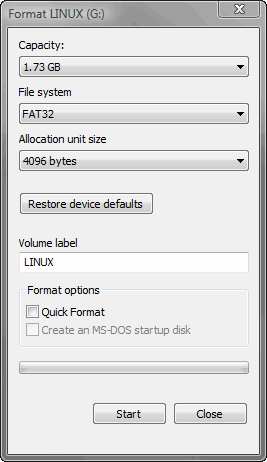
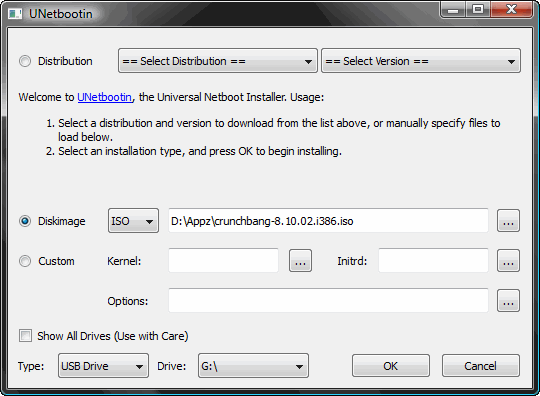


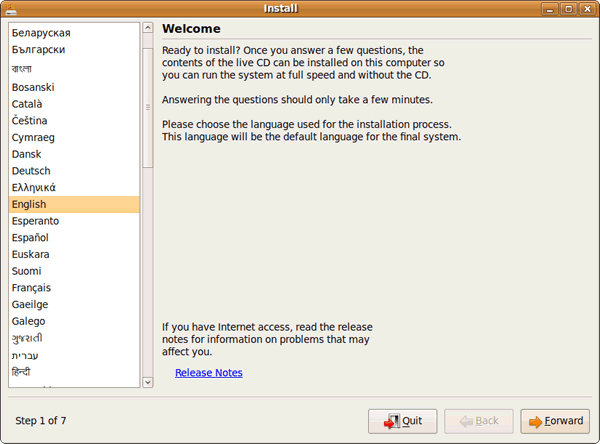


 This issue can be caused by any of the below possibilities.
 This page only cover an overall slow computer and not a


