Find here what you want

Improve the security of a wireless network

A wireless connection to send signals can be received by anyone who is close. It always better to be safe than worry. So following are some tips to improve the security of wireless network:
  • Change the password on your router. All routers come with preset service identifiers.
  • The simplest is to give key to your network wirelessly. It is better to use the WAP protocol if available. Any key will increase network security.
  • Set up a filter MAC. This feature is not so powerful as it may seem. Hackers and their software programs can fake MAC addresses easily.
  • In Wi-Fi networking, the wireless access point or router typically broadcasts the network name (SSID) over the air at regular intervals. This feature was designed for businesses and mobile hotspots where Wi-Fi clients may roam in and out of range.
  • Do Not Auto-Connect to Open Wi-Fi Networks, connecting to an open Wi-Fi network such as a free wireless hotspot or your neighbor's router exposes your computer to security risks.

    Modern network routers contain built-in firewall capability, but the option also exists to disable them. Ensure that your router's firewall is turned on. Use wireless security software. Whether you're an individual or a corporation, this software has many benefits. The ultimate in wireless security measures, shutting down your network will most certainly prevent outside hackers from breaking in! While impractical to turn off and on the devices frequently, at least consider doing so during travel or extended periods offline.
    Reply With Quote

Tips for Increase Broadband speed

In Mozilla


1.Type "about:config" into the address bar and hit return. Scroll down and look for the following entries:

network.http.pipelining network.http.proxy.pipelining network.http.pipelining.maxrequests


Another way to Increase Broadband speed

Download NETSpeedBoost Professional Edition v6.0

NETSpeedBoost 6.0 Professional Edition! From the original author of the world's most popular internet accelerator - Intelli-Dial-UP, we are proud to announce the official successor - .NETSpeedBoost 6.0 .NETSpeedBoost is a powerful and easy to use self installing program for Windows 95, 98, ME, NT, 2000, XP, and Vista which optimizes your Internet connection speed by up to 1200% faster.

When computers leave the factory, they are not set up to surf at the maximum speed. .NETSpeedBoost increases the performance of your computer by opening up the pipeline so that the information flows FASTER.

What are the benefits for using NETSpeedBoost?
NETSpeedBoost automatically optimizes your internet connection for maximum speed and efficency
.NETSpeedBoost speeds up your internet connection up to 1500% faster
Webpages load a lot faster (instantaneously page loading!)
Send and receive your emails much faster than before
Experience quicker downloads of MP3s, Video/Movie files, graphics, software, and more.
Experience super fast file transfer, online games, minimum pings, and other internet-related software!
Online voice conversation and video camera interaction perform very well without connection interruption
Works with all browsers and Internet Service Providers!
Works with connection of all types
Be the master and the smart! Boost up your internet connection today!

REQUIREMENT: .NET Framework


1. Firefox users can use FlashBlock extension to prevent downloading of Flash content by default, thereby significantly speeding up browsing experience. You can click on the placeholder icon to display the original Flash content any time. This is more of a passive tip in that reduces data usage to improve your overall experience.

2. You can try to increase your broadband bandwidth tweaking the TCP/IP parameters. The process is simplified by using TCPOptimizer, a free tool. It helped me, your mileage may vary.


Normally the browser will make one request to a web page at a time. When you enable pipelining it will make several at once, which really speeds up page loading.

2. Alter the entries as follows:

Set "network.http.pipelining" to "true"

Set "network.http.proxy.pipelining" to "true"

Set "network.http.pipelining.maxrequests" to some number like 30. This means it will make 30 requests at once.

3. Lastly right-click anywhere and select
New-> Integer. Name it "nglayout.initialpaint.delay" and set its value to "0". This value is the amount of time the browser waits before it acts on information it receives.

If you're using a broadband connection you'll load pages MUCH faster now!

How To: Installing BackTrack 4 R1 to a USB Flash Drive

Introduction:

In this tutorial you will learn how to install the latest version of BackTrack (BackTrack 4 R1) to your USB flash drive. Not only will you be able to boot BackTrack off of a flash drive, but it will also allow you to have persistent changes. This tutorial will also work for previous versions of BackTrack.

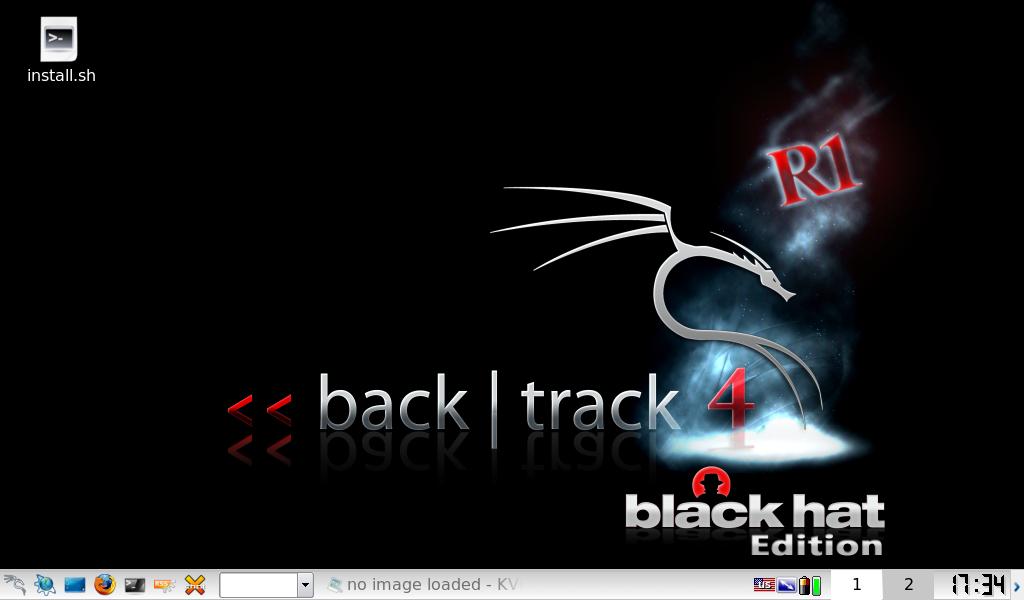
thumbs bt4 logo wallpaper How To: Installing BackTrack 4 R1 to a USB Flash Drive

Tools and Material:


  • USB Flash Drive – 8GB minimum
  • DVD of BackTrack 4 R1 (or previous version)
The reason why we recommend an 8GB flash drive is that after everything is installed from the disk, you wouldn’t have much room for installing anything additional if you were to using a 4GB flash drive.

Partitioning the Flash Drive:

All of this tutorial will be done from the command line. So the first step is to pop in the disk and flash drive and select the first option when you are greeted by the BackTrack boot up menu. This will eventually leave you with a command prompt, which is where we will begin.
Now that we have a prompt, we must determine which drive our flash drive is. We accomplish this by running the command:

dmesg | egrep hd.\|sd.
This will give us a list of all drives on the machine. From there you need to select which one is yours. I will use sda in my examples, but yours may be different and you should substitute as necessary.
We will be using fdisk to create the partitions for our Flash Drive.

fdisk /dev/sda
Delete the existing partitions, there may be more than 1. Input the commands that are bolded.

Command (m for help): d
Partition number (1-4): 1
Create the first partition

Command (m for help): n
Command action
e   extended
p   primary partition (1-4)
p

Partition number (1-4): 1
First cylinder: <enter>
Using default value 1
Last cylinder, +cylinders or +size{K,M,G}: +2000M
Create the second partition:

Command (m for help): n
Command action
e   extended
p   primary partition (1-4)
p

Partition number (1-4): 2
First cylinder: <enter>
Last cylinder, +cylinders or +size{K,M,G}: <enter>
Set the partition type of the first partition to vfat/fat32

Command (m for help): t
Partition number (1-4): 1
Hex code (type L to list codes): b
Changed system type of partition 1 to b (W95 FAT32)
Set the partition type of the second partition to Linux

Command (m for help): t
Partition number (1-4): 2
Hex code (type L to list codes): 83
Set the first partition to active

Command (m for help): a
Partition number (1-4): 1
Write out the current partition table to the disk

Command (m for help): w
Format the partitions, substituting your drive for sda as neccessary

mkfs.vfat /dev/sda1
mkfs.ext3 -b 4096 -L casper-rw /dev/sda2

Mounting and Copying Files:

Next we need to mount the flash drive that we just made partitions on

mkdir /mnt/sda1
mount /dev/sda1 /mnt/sda1
Then we will use rsync to copy the files from the DVD to the flash drive.

cd /mnt/sda1
rsync -r /media/cdrom0/* .

Installing grub:

Now that we’ve copied all of the files over, we must now install a bootloader on the flash drive.

grub-install –no-floppy –root-directory=/mnt/sda1 /dev/sda

Persistent Changes:

Now that grub is installed, we are technically done, but I like to make some changes to the grub boot menu so that it picks persistent changes mode by default.

cd /mnt/sda1/boot/grub
nano menu.lst
You will need to change the default to 4.

Tweaks:

One thing I like to do is enable networking by default as it is normally disabled. To accomplish this, you need to boot from the actual flash drive and then run the command:

/usr/sbin/update-rc.d networking defaults

Closing:

BackTrack is a great resource for checking the security of your home network.  It really provides you with pretty much every tool to audit your home network. Now you will be able to take you flash drive and audit any network.

thumbs backtrack4 r1 How To: Installing BackTrack 4 R1 to a USB Flash Drive

Update:

The public version of BackTrack R1 has been released and can be found here: http://www.backtrack-linux.org/downloads/

ubuntu Installation

Table of contents
- Install from CD
- Install with Wubi
- Install in EXT3 Partition
- Install from USB

When it comes to installing popular Linux flavour  Ubuntu, there are so many useful snippets of information on blogs and guides all over the internet. If you Google “How to install Ubuntu”, you’ll see what I mean.
For an Ubuntu beginner or curious Windows intermediate user however, there’s no single, simple source of information when it comes to trying out your first Ubuntu installation. One thing I have noticed is that there’s a lot of technical jargon and sometimes unnecessary terminal commands in lengthy forum posts, but no simple “how to” guides, which I think  might put some people off! A shame, when you think about how easy Ubuntu is to install, use and tweak to look really cool!
This post will talk you through your first Ubuntu installation, hopefully teaching you everything you need to know to give Ubuntu a try without breaking or removing your existing Windows installation. The end result will be a “vanilla” Ubuntu Installation running simultaneously with your Windows installation using either the GRUB bootloader, or WUBI, depending on how far you’d like to go on your first Ubuntu experience.
I hope my guide makes installing Ubuntu an enjoyable, simple experience. By the end of the guide you should have a dual boot Windows / Ubuntu machine that happily plays music, video, and acts as a perfectly usable home office computer with Openoffice 3.0. For the really adventurous you could even run Windows XP inside Virtualbox, which is linked to later on in the guide.  The Ubuntu OS is unique and seriously cool, so, enjoy the trip.
The all new Ubuntu login screen
If you’re planning on installing the latest version of Ubuntu (Jaunty Jackalope 9.04) you can install Ubuntu straight from the CD inside Windows or from a USB stick and the install process can takes care of formatting your hard drive partition for you. You might not yet have a spare partition to do this, so I’ve covered shrinking your existing Windows partition to make space for Ubuntu here.
How to install Ubuntu from CD
1) Download the Ubuntu ISO from http://www.ubuntu.com/getubuntu/download and save to your desktop
2) Burn the ISO image to a blank CD using Roxio CD creator or similar:
burn a disc image with roxio
3) Run the CD from “My Computer” – the CD should ask permission to run at which point you’ll see this option screen:

Install Ubuntu with Wubi
4) If you’d like to install Ubuntu using Wubi, select “install inside Windows” and follow the instructions. Installing with WUBI is ideal for a first taste of Ubuntu as you can remove from add/remove programs in Windows later on. This install process is really easy but you don’t get the same performance as if Ubuntu had a separate partition running on its EXT3 file system. The following screens are all based on the Wubi installer process, so you can follow the rest of the instructions below.
If you’d like to install Ubuntu separately to Windows, then skip to point 7) below.
Here’s what you see next:
Wubi installer
If you’ve got the space on your hard drive, go for 30gb or more for the installation size.
5) Now configure your installation using the simple settings options. You can specify the location of the Ubuntu installation on your Windows partition, the size of the Ubuntu installation, the Ubuntu flavour (Ubuntu, Kubuntu, Xubuntu, etc), your preferred language, and a username and password for the Ubuntu system.
When you click install, you’ll see this screen:

As soon as the files have finished downloading, you’ll see this:
Time to reboot Wubi installer
6) That’s it! Click reboot now, and select “Ubuntu” on the startup screen. You now have a fully functional dual boot Windows / Ubuntu machine.
Install Ubuntu on a single (EXT3) partition (separately to Windows)
7) Click “Demo and full installation” and your computer will restart and boot into Ubuntu.
It’s worth saying at this point that you’re about to install Ubuntu on an entirely separate drive partition. That means, you need to make sure you have enough space on your computers hard drive to accomodate the new setup. Keir Thomas found that a partition less than 4gb would lead Ubuntu to crash during install in his first look at Ubuntu 9.04 over at Lifehacker.
Here’s a guide on how to resize or shrink your Windows Vista partition. Follow those instructions before you reboot into the live version of Ubuntu and you’ll have a really easy time during the following steps. Maybe you’d like to install from a USB? Let’s have a quick look at the process of installing from a USB before we continue:
Here’s how to install Ubuntu on a USB drive from Windows Vista:
8) Format your USB stick with a FAT32 partition from Windows. You can get to the format dialogue by opening My Computer and right mouse clicking the removable drive icon. Click “Format” and follow the settings in the image below. You need a minimum 2gb USB stick.
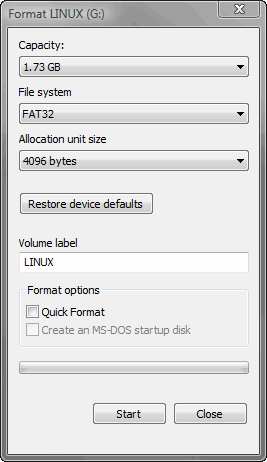
format your USB drive in Windows Vista
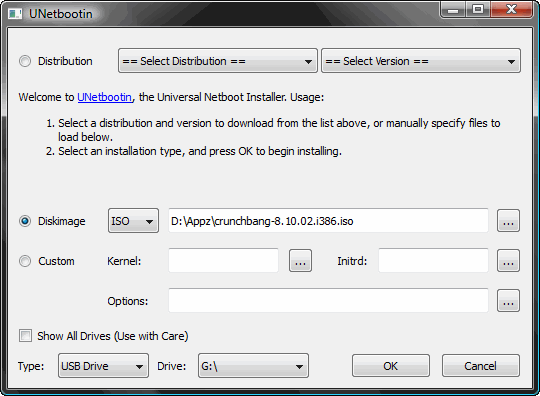
9) Download UnetBootin. UNetbootin allows for the installation of various Linux/Ubuntu distributions to a partition or USB drive, so it’s no different from a standard install, only it doesn’t need a CD. The coolest thing about the application is that it’s a “portable” app. You don’t need to install it into Windows meaning UNetbootin will run on your Windows PC without “admin” privileges.
using unetbootin to install the new ubuntu jaunty jackalope

The new version of Ubuntu isn’t in the Distribution list supplied with UNetbootin yet, so use the downloaded Ubuntu ISO from earlier on. Add the ISO using the “Diskimage”, make sure your USB drive is selected below and click OK.
The ISO transfers to the USB pretty quickly, so soon after you click OK you’ll see this screen:
unetbootin complete
10) That’s it – when the installation process is complete, restart your computer and make sure it’s set up to boot from USB. On my HP Laptop, pressing F9 on the boot screen shows a boot order menu. Selecting “USB Hard Drive” follows a black screen, an Ubuntu logo, and finally, your new Ubuntu desktop appears.
Completing your Ubuntu installation, step by step
Installing Ubuntu is so easy that it requires very little effort past this point. If you’ve managed to repartition your hard drive and restart your computer you’ll sail through the next few steps:
11) Click “install” on the live desktop (top left)
vanilla Ubuntu desktop
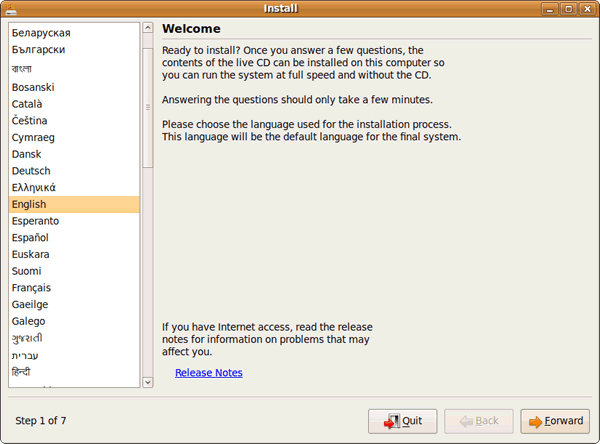
12) Choose your language in the welcome screen
welcome1
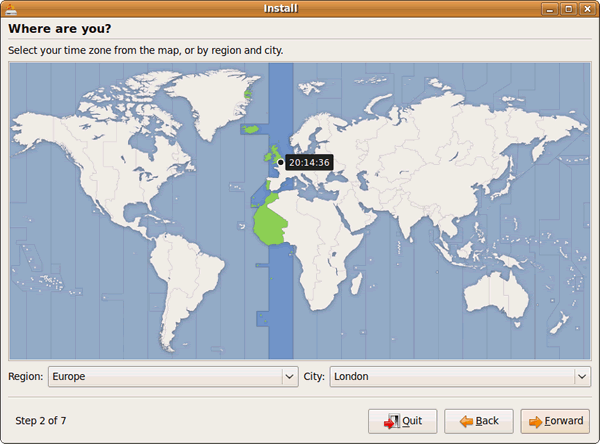
13) Choose your location
Choose location
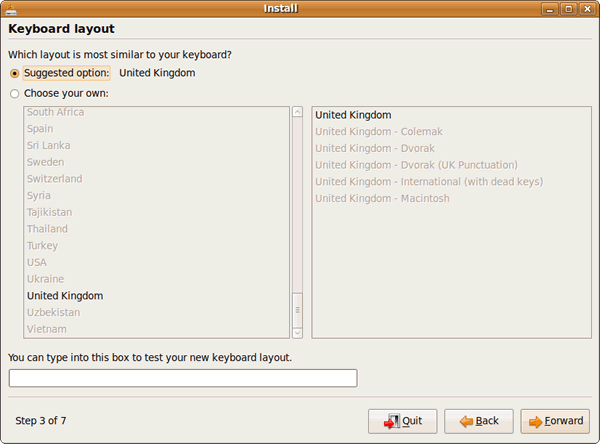
14) Choose your keyboard layout
welcome31
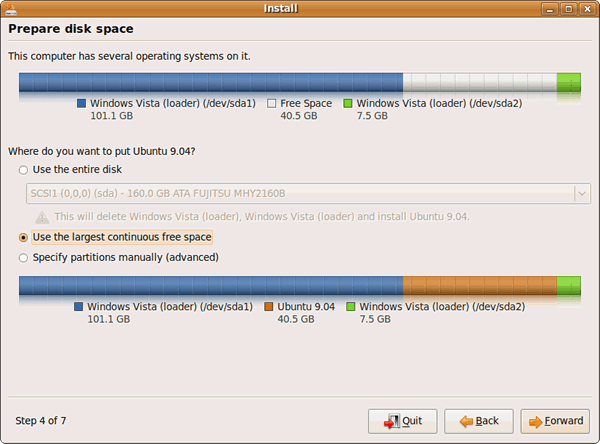
15) Set up your disk partition. This is probably the most “technical” part of the installation. When I shrunk my Windows Vista drive volume, I never formatted the new partition, which means the “use the largest continuous free space” option works nicely:
Set up a disk partition for Ubuntu
16) Choose your username and password:
Choose your Ubuntu Password
17) Migrate your Windows documents and settings
Migrate your Windows settings
18) You’re now ready to install your new Ubuntu installation
Ready to install
19) When the installation has finished, restart your computer (you’ll be instructed to remove your cd rom or USB drive). You’re now ready to begin using Ubuntu!

Remotely access other computers in your network

Easily and freely control multiple computers running any number of operating systems from one computer using VNC. The official VNC page can be found at http://www.realvnc.com/. Another great free alternative that works in all versions of Windows including Vista is TightVNC, which is found at http://www.tightvnc.com/.

Slow Computer Issues

Issue

My computer is running slow what steps can I do to fix it?

Cause

Slow computerThis issue can be caused by any of the below possibilities.
  1. Not enough hard disk space.
  2. Left over programs and bad files.
  3. Data Corruption.
  4. Missing Windows updates / Outdated drivers.
  5. Computer is overheating.
  6. Corrupt OS.
  7. Bad Hardware.

Solution

Tip This page only cover an overall slow computer and not a computer that has a slow boot up.
Below are steps for Microsoft Windows users that should help speed up the computer or determine why the computer is running slow.
Reboot
If your computer has not been reboot recently make sure to reboot it before following any of the below steps.
Not enough hard disk drive space
Verify that there is at least 200-500MB of free hard disk drive space. This available space allows the computer to have room for the swap file to increase in size as well as room for temporary files.
Hard drive corrupted or fragmented
  • Run ScanDisk or something equivalent to verify there is nothing physically wrong with the computer hard disk drive.
  • Run Defrag to help ensure that data is arranged in the best possible order.
Background programs
Remove or disable any TSRs and startup programs that automatically start each time the computer boots.
Tip To see what programs are running in the background and how much memory and CPU they are using open Task Manager.  If you are running Windows 7 run Resmon to get a better understanding of how your computer is being used.
If you've got an anti-virus scanner on the computer, spyware protection program, or other security utility make sure it's not scanning your computer in the background. Often when these programs begin to scan the computer it can decrease the overall performance of your computer.
Scan for malware
Today, spyware and other malware is a big cause of many computer problems including a slow computer. Even if an anti-virus scanner is installed on the computer we recommend running a malware scan on the computer. Use the free version of Malwarebytes to scan your computer for malware.
Hardware conflicts
Update Windows
Update your drivers
Make sure you've got the latest drivers for your computer. Especially the latest video drivers. Having out-of-date drivers can cause an assortment of issues.
Computer or processor is overheating
Make sure your computer and processor is not overheating, excessive heat can cause a significant decrease in computer performance some processors will even lower the speed of the processor automatically to help compensate for the heat related issues.
Dust, dirt, and hair can also constrict a proper air flow on your computer, which can also cause a computer to overheat. Make sure your computer case is clean and fans are not obstructed.
Memory upgrade
If you've had your computer for more than one year it's likely you're computer is not meeting the memory requirements for today. Today, we suggest at a minimum the computer have 1GB of memory.
Specific operating system basic troubleshooting
Or go through the other basic troubleshooting steps.
Run registry cleaner
We normally do not recommend registry cleaners. However, if you have followed all of the above steps and your computer is still slow try running a registry cleaner on the computer.
Erase computer and start over
If none of the above solutions resolve your issues, it is recommended that you either reinstall Windows or erase everything and then start over.
Old computer
If your computer is older than five years come to terms that it is likely the age of the computer that is causing it to be slow. Computers progress at an alarming rate as new programs and updates for programs come out their minimum requirements increase and will cause older computers to slow down. If your computer is older than five years we suggest purchasing a new computer or just realize it is going to run slow because it is old.
Hardware issues
Finally, if your computer continues to be slow after going over each of the above recommendations it's possible that your computer is experiencing a more serious hardware related issue such as a failing component in the computer. This could be a failing or bad hard drive, CPU, RAM, motherboard, or other component.

Google Voice Search................................

Google is pushing its voice-recognition technology to Apple's iPhone first, before devices running its own Android mobile platform.
The New York Times offered photographs of Google employees Vic Gundotra and Gummi Hafsteinsoon using an iPhone for a voice search. The free application was expected to be available on Apple's App Store on Friday. Google reportedly will soon offer the technology for other devices, presumably including the T-Mobile G1, which uses Android.


"This is an expansion of types of applications Google has already been developing," said Greg Sterling, principal analyst at Sterling Market Intelligence. "Google has GOOG411, which is the underlying technical engine. They also have a voice-search client for the BlackBerry which is limited to maps. So this is an evolutionary step."
Inside Google Voice Search
Here's how it works: The iPhone user asks a question, such as "Where's the closest Burger King?" or "How wide is the Grand Canyon?" The user's voice is converted to a digital file and transmitted to Google's servers.
Google Search then serves up the results -- in a matter of seconds if the user has a fast wireless network, the Times reports. The search results always include any local information.
"The question with these types of technologies is how good is the speech recognition? It's getting much better, and that's why Google feels this is the right time to introduce this," Sterling said. "Google has confidence now that voice recognition is good enough to open it up to the full Web search as opposed to the much more structured search on GOOG411."
Google is playing catch-up, in a sense. Yahoo and Microsoft Relevant Products/Servicesalready offer a voice-recognition option for mobile phones. Microsoft's Tellme service offers users information in specific categories, such as movies, maps or directions. Yahoo offers voice services through its oneSearch platform.
"In one sense this is new, but it's not new, because Yahoo and Microsoft have been doing versions of voice recognition -- and so has Google -- for some time," Sterling said. "A company called Dial Directions was the first to formally introduce voice search for the iPhone, but it was limited to selected local sites through the Safari browser."
Building a Killer App
Could voice recognition be the next killer app for mobile? The market is growing at breakneck speed. Voice-recognition technology sales topped $1 billion in 2006 for the first time. Datamonitor expects that number to swell to $2.6 billion by 2009.
The market is heating up -- and going global. Voice-recognition software maker Nuance Communications earlier this month acquired Austria-based Philips Speech Recognition Systems for $96.1 million. Philips develops speech-recognition solutions in 25 languages.
Voice recognition on the mobile phone is still not completely accurate, and may not see mainstream use until it improves. But Sterling said it is ever-improving and thinks Google's voice search will be a popular mobile-phone feature.
Specifically, he sees the new Google application for the iPhone as most useful when a user might need to call directory assistance or do a simple search, but can't do it safely on a keyboard while driving. Another benefit is the ability to enter potentially long search queries that would be difficult to type. But accuracy is still a factor.
"This is an evolutionary step in the whole realm of voice search," Sterling said. "So far it has not proven to be the killer app for mobile, but it's getting there and it's very useful in selective situations."

Hack Mozilla Speed

All know that the biggest fear of microsoft is google. if u would ask me which would be the second, i would say it's mozilla. It was them who destroyed the legacy of microsoft's internet explorer. Firefox from it's starting itself have challenged it's microsoft's counter part internet explorer
It is estimated that world's 85% of people prefer mozilla firefox to browse than internet explorer.


And the latest from them mozilla firefox 3 has alrady enjoyed world record download of more than 80 lakh download within first 1 week of it's official release. It browses 10 times faster than the internet explorer.

And here i will give u a small hack software, which can boost ur internet speed(useable only for firefox)

This software is extemely functional and is having no negative effect for ur PC or net connection( i hav used this personally and hav really enjoyed it's power)

This software is called firetune from total idea software

first of all download firetune by clicking here(IT'S COMPLETELY FREE)


Click here to Download Firetune search the link above (click products when the link is opened)


After downloading open it and run the software.


1))) In welcome window
here click create bac up configuration and this will back up ur firefox orginal configuration


2))) In perfomance optimisation window


click fast computer /fast connection (if CPU speed greater than 1.5 ghz, min 512 mb ram and if ur net connection is DSL, CABLE or any having sped more than 144kbps)

fast computer/ slower connection ( if computer CPU speed greater than 1.5 ghz, min 512 mb ram and if ur net connection is dial up or any which's speed less tah 144kbps)

slow computer/ fast connection ( if speed is less than 1.5 ghz or ram less than 512 mb (either both or one) and having fast net connection having speed greater than 144 kbps)

slow computer/ slow connetion ( if computer is having ram less than 512 mb or speed less than 1.5 ghz and slow net connection less than 144 kbps)


3))) In other other optimisation click enable some perfomance tweaks common to all configuration


this will help to increase ur net perfomance

4))) In other useful setting page click optimise firefox memory usage


5))) at last click Tune it


NOTE: CLOSE FIREFOX WINDOWS( if any open) OTHERWISE IT WON'T TUNE

AND WELCOME TO FAST BROWSING WORLD

What is Cloud Computing


Computer Networking Image Gallery


Let's say you're an executive at a large corporation. Your particular responsibilities include making sure that all of your employees have the right hardware and software they need to do their jobs. Buying computers for everyone isn't enough -- you also have to purchase software or software licenses to give employees the tools they require. Whenever you have a new hire, you have to buy more software or make sure your current software license allows another user. It's so stressful that you find it difficult to go to sleep on your huge pile of money every night.
Soon, there may be an alternative for executives like you. Instead of installing a suite of software for each computer, you'd only have to load one application. That application would allow workers to log into a Web-based service which hosts all the programs the user would need for his or her job. Remote machines owned by another company would run everything from e-mail to word processing to complex data analysis programs. It's called cloud computing, and it could change the entire computer industry.
In a cloud computing system, there's a significant workload shift. Local computers no longer have to do all the heavy lifting when it comes to running applications. The network of computers that make up the cloud handles them instead. Hardware and software demands on the user's side decrease. The only thing the user's computer needs to be able to run is the cloud computing system's interface software, which can be as simple as a Web browser, and the cloud's network takes care of the rest.
There's a good chance you've already used some form of cloud computing. If you have an e-mail account with a Web-based e-mail service like Hotmail, Yahoo! Mail or Gmail, then you've had some experience with cloud computing. Instead of running an e-mail program on your computer, you log in to a Web e-mail account remotely. The software and storage for your account doesn't exist on your computer -- it's on the service's computer cloud.


Cloud Computing Architecture

When talking about a cloud computing system, it's helpful to divide it into two sections: the front end and the back end. They connect to each other through a network, usually the Internet. The front end is the side the computer user, or client, sees. The back end is the "cloud" section of the system.
The front end includes the client's computer (or computer network) and the application required to access the cloud computing system. Not all cloud computing systems have the same user interface. Services like Web-based e-mail programs leverage existing Web browsers like Internet Explorer or Firefox. Other systems have unique applications that provide network access to clients.
On the back end of the system are the various computers, servers and data storage systems that create the "cloud" of computing services. In theory, a cloud computing system could include practically any computer program you can imagine, from data processing to video games. Usually, each application will have its own dedicated server.
A central server administers the system, monitoring traffic and client demands to ensure everything runs smoothly. It follows a set of rules called protocols and uses a special kind of software called middleware. Middleware allows networked computers to communicate with each other. Most of the time, servers don't run at full capacity. That means there's unused processing power going to waste. It's possible to fool a physical server into thinking it's actually multiple servers, each running with its own independent operating system. The technique is called server virtualization. By maximizing the output of individual servers, server virtualization reduces the need for more physical machines.
If a cloud computing company has a lot of clients, there's likely to be a high demand for a lot of storage space. Some companies require hundreds of digital storage devices. Cloud computing systems need at least twice the number of storage devices it requires to keep all its clients' information stored. That's because these devices, like all computers, occasionally break down. A cloud computing system must make a copy of all its clients' information and store it on other devices. The copies enable the central server to access backup machines to retrieve data that otherwise would be unreachable. Making copies of data as a backup is called redundancy.


Cloud Computing Applications

The applications of cloud computing are practically limitless. With the right middleware, a cloud computing system could execute all the programs a normal computer could run. Potentially, everything from generic word processing software to customized computer programs designed for a specific company could work on a cloud computing system.
Why would anyone want to rely on another computer system to run programs and store data? Here are just a few reasons:
  • Clients would be able to access their applications and data from anywhere at any time. They could access the cloud computing system using any computer linked to the Internet. Data wouldn't be confined to a hard drive on one user's computer or even a corporation's internal network.
  • It could bring hardware costs down. Cloud computing systems would reduce the need for advanced hardware on the client side. You wouldn't need to buy the fastest computer with the most memory, because the cloud system would take care of those needs for you. Instead, you could buy an inexpensive computer terminal. The terminal could include a monitor, input devices like a keyboard and mouse and just enough processing power to run the middleware necessary to connect to the cloud system. You wouldn't need a large hard drive because you'd store all your information on a remote computer.
  • Corporations that rely on computers have to make sure they have the right software in place to achieve goals. Cloud computing systems give these organizations company-wide access to computer applications. The companies don't have to buy a set of software or software licenses for every employee. Instead, the company could pay a metered fee to a cloud computing company.
  • Servers and digital storage devices take up space. Some companies rent physical space to store servers and databases because they don't have it available on site. Cloud computing gives these companies the option of storing data on someone else's hardware, removing the need for physical space on the front end.
  • Corporations might save money on IT support. Streamlined hardware would, in theory, have fewer problems than a network of heterogeneous machines and operating systems.
  • If the cloud computing system's back end is a grid computing system, then the client could take advantage of the entire network's processing power. Often, scientists and researchers work with calculations so complex that it would take years for individual computers to complete them. On a grid computing system, the client could send the calculation to the cloud for processing. The cloud system would tap into the processing power of all available computers on the back end, significantly speeding up the calculation.
While the benefits of cloud computing seem convincing, are there any potential problems? Find out in the next section.


Cloud Computing Concerns

Perhaps the biggest concerns about cloud computing are security and privacy. The idea of handing over important data to another company worries some people. Corporate executives might hesitate to take advantage of a cloud computing system because they can't keep their company's information under lock and key.
The counterargument to this position is that the companies offering cloud computing services live and die by their reputations. It benefits these companies to have reliable security measures in place. Otherwise, the service would lose all its clients. It's in their interest to employ the most advanced techniques to protect their clients' data.
Privacy is another matter. If a client can log in from any location to access data and applications, it's possible the client's privacy could be compromised. Cloud computing companies will need to find ways to protect client privacy. One way is to use authentication techniques such as user names and passwords. Another is to employ an authorization format -- each user can access only the data and applications relevant to his or her job.
Some questions regarding cloud computing are more philosophical. Does the user or company subscribing to the cloud computing service own the data? Does the cloud computing system, which provides the actual storage space, own it? Is it possible for a cloud computing company to deny a client access to that client's data? Several companies, law firms and universities are debating these and other questions about the nature of cloud computing.
How will cloud computing affect other industries? There's a growing concern in the IT industry about how cloud computing could impact the business of computer maintenance and repair. If companies switch to using streamlined computer systems, they'll have fewer IT needs. Some industry experts believe that the need for IT jobs will migrate to the back end of the cloud computing system.
Another area of research in the computer science community is autonomic computing. An autonomic computing system is self-managing, which means the system monitors itself and takes measures to prevent or repair problems. Currently, autonomic computing is mostly theoretical. But, if autonomic computing becomes a reality, it could eliminate the need for many IT maintenance jobs.


Dumb Terminal Definition

Dumb Terminal Definition


A dumb terminal is a computer terminal that consists mostly of just a display monitor and a keyboard (and perhaps a mouse as well). It has no internal CPU (central processing unit), and thus has little or no processing power. Likewise, there is no hard disk drive (HDD).
A terminal is a device that allows communications with a computer. Dumb terminals are connected to a network that includes one or more servers, which are computers with sufficient processing power to run any application programs that are being accessed through the dumb terminals.
Dumb terminals were sometimes called glass teletypes because they were similar to teletype machines to which display monitors (whose front surfaces are made from glass) were added. Also referred to as a teletypewriter and given the acronym TTY, a teletype machine is a now generally obsolete electro-mechanical typewriter that was widely used to communicate typed messages from point to point through a simple electrical communications channel. Teletypewriters were also used as the first computer terminals.
The terms smart terminal, network computer and thin client are sometimes used to refer to enhanced dumb terminals that provide additional resources to perform local editing and simple processing. That is, they have some processing power, but they still rely on servers in the network for much or most of their processing and their access to application programs. They likewise boot from a server in the network. Booting refers to installing the operating system into the memory of the terminal.
Many businesses and other organizations favored networks of dumb terminals because they could provide a single operating system with a single version of software running on it for all users. As they have no moving parts (other than the keys on the keyboard) that can break down or lose data, dumb terminals can provide greater virus resistance and data security as compared with full-fledged personal computers, and they can be more reliable. They are also quiet, easy-to-deploy, and simple to manage remotely. However, some users did not like their restricted ability to control the processing of information on such systems.
In contrast to earlier dumb-terminals, today's thin clients provide much more user-friendly displays, including multiple windows, web browsing and other features of conventional personal computers.
Dumb terminals were produced by a number of major companies in the 1970s and early 1980s, including DEC, Heath, IBM, Lear-Siegler, Televideo and Wyse. However, the rapid drop in the cost and increase in the power of personal computers made it more economical for businesses to use them in place of dedicated dumb terminals. It is very easy to configure personal computers so that they can emulate dumb terminals, thin clients, or terminals with any desired level of intelligence.


How to Configure Telnet Server ????

telnet server is used to login into another system. You can use the telnet command to log in remotely to another system on your network. The system can be on your local area network or available through an Internet connection. Telnet operates as if you were logging in to another system from a remote terminal. You will be asked for a login name and password. In effect, you are logging in to another account on another system. In fact, if you have an account on another system, you could use Telnet to log in to it.
You invoke the Telnet utility with the keyword telnet. If you know the name of the site you want to connect with, you can enter telnet and the name of the site on the Linux command line.
CAUTION The original version of Telnet is noted for being very insecure. For secure connections over a network or the Internet, you should use the Secure Shell (SSH). We will cover SSH server in next article. SSH operate in the same way as the original but use authentication and encryption to secure the Telnet connection. Even so, it is advisable never to use Telnet to log in to your root account. That why by defaults root account is disable for root login.

Configure telnet server

In this example we will configure a telnet server and will invoke connection from client side.
For this example we are using three systems one linux server one linux clients and one window clients. To complete these per quest of telnet server Follow this link
  • A linux server with ip address 192.168.0.254 and hostname Server
  • A linux client with ip address 192.168.0.1 and hostname Client1
  • A windows xp system with ip address 192.168.0.2 and hostname Client2
  • Updated /etc/hosts file on both linux system
  • Running portmap and xinetd services
  • Firewall should be off on server
We have configured all these steps in our pervious article.
We suggest you to review that article before start configuration of telnet server. Once you have completed the necessary steps follow this guide.
Four rpm are required to configure telnet server. telnet, telnet-server, portmap, xinetd check them if not found then install
rpm
Now check telnet, portmap, xinetd service in system service it should be on

#setup
Select System service from list
[*]portmap
[*]xinetd
[*]telnet
Now restart xinetd and portmap service
service restart
To keep on these services after reboot on then via chkconfig command
chkconfig
After reboot verify their status. It must be in running condition
service status
Create a normal user named vinita
Your Ad Here

On Linux client

ping from telnet server and run telnet command and give user name and password
telnet form linux

On Window client

ping from telnet server and run telnet command
telnet
Give user name and password
user login

How to enable root login from telnet server

On linux server open file securetty
securetty
In the end of file add pts/0 to enable one telnet session for root. if you need to open more telnet session for root and add more pts/1 pts/2 and so on.
editing in securetty
Now restart xinetd and portmap service
service restart
Verfiy from window by login from root
root login telnet

How to recover formatted hard disk DATA ??

To recover data from a drive containing lost or missing partition, follow these steps:

First We recommend that you use professional partition recovery tool -
Partition Table Doctor to recover missing or lost partitions.


Symptoms


Where previously the computer would boot and be usable, systems that have been Formatted often report the following errors: (these errors are frequently displayed on a black screen with white text.)
  • Operating System not found
  • Invalid or corrupt FAT
  • Cannot find file or program
  • Invalid command.com
  • Primary/Secondary Hard disk failure
  • Non system disk
  • isk error
Or when a partition has been formatted, the all data would disappear.

To recover files from formatted drives, please follow this procedure:

1. Click the Select "FormatRecovery" button on the main window of Data Recovery Wizard.


2.The first screen on the "FormatRecovery" tool will display a list of partitions found on the drives found in your system. If your partition is not listed, this is a sign of more severe corruption. You may need to select the "AdvancedRecovery" tool to recover your data. If you are trying to
recover data from removable media, you need to have the media in the drive before selecting the "FormatRecovery " tool.

3. When you accidentally reformatted a partition you may have changed the partition type. The "
Previous File System" radio box will allow you to select the previous file system type for your partition.


4. To begin a formatted recovery, select a partition and click "Next" to begin scanning for Files. Data Recovery Wizard analyses the drive data structures and file system attributes and displays the directory tree.


5.After this scanning is finished, you'll see file/folder tree.


6. Select the file or directory that you want to recover and press the "
Next" button.

7.Select a directory and press the "
Next" button to save the data.

Note:
If you have repartitioned your drive and the partition size has been changed or moved, use the "AdvancedRecovery" tool.

Caution:
Saving file(s) to the partition or drive from where you are recovering data, for it may result in overwriting of data, and would result in permanent data loss!!!