To recover data from a drive containing lost or missing partition, follow these steps:
First We recommend that you use professional partition recovery tool - Partition Table Doctor to recover missing or lost partitions.
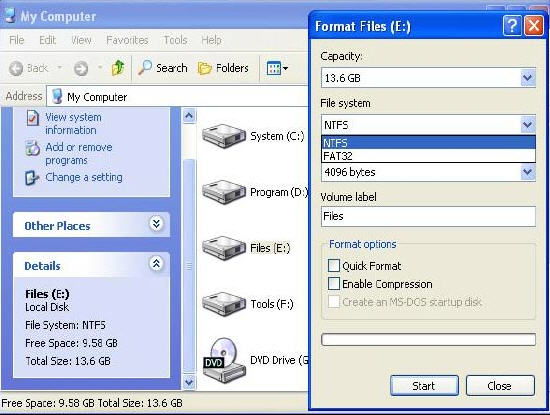
Symptoms
Where previously the computer would boot and be usable, systems that have been Formatted often report the following errors: (these errors are frequently displayed on a black screen with white text.)
To recover files from formatted drives, please follow this procedure:
1. Click the Select "FormatRecovery" button on the main window of Data Recovery Wizard.
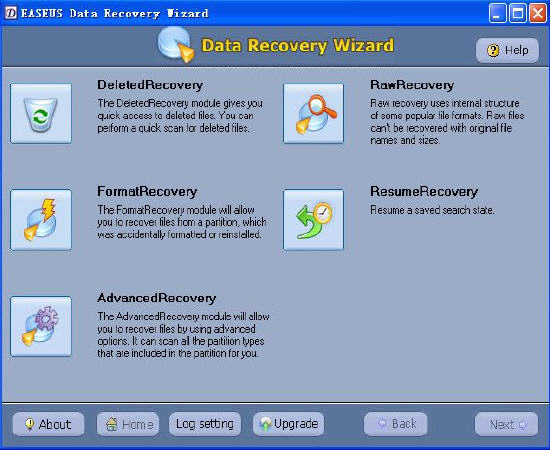
2.The first screen on the "FormatRecovery" tool will display a list of partitions found on the drives found in your system. If your partition is not listed, this is a sign of more severe corruption. You may need to select the "AdvancedRecovery" tool to recover your data. If you are trying to recover data from removable media, you need to have the media in the drive before selecting the "FormatRecovery " tool.
3. When you accidentally reformatted a partition you may have changed the partition type. The " Previous File System" radio box will allow you to select the previous file system type for your partition.
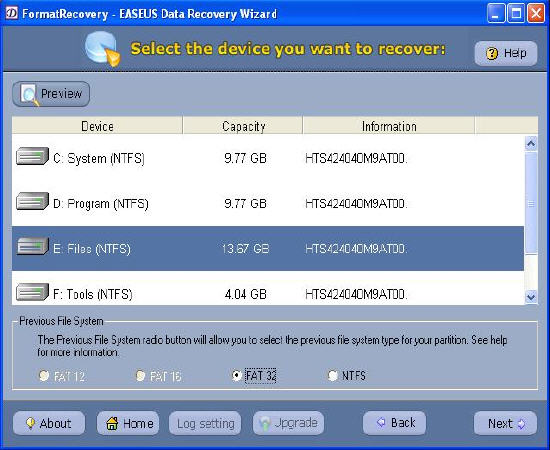
4. To begin a formatted recovery, select a partition and click "Next" to begin scanning for Files. Data Recovery Wizard analyses the drive data structures and file system attributes and displays the directory tree.
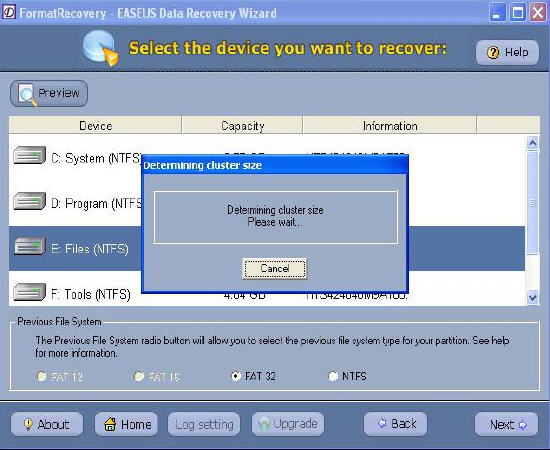
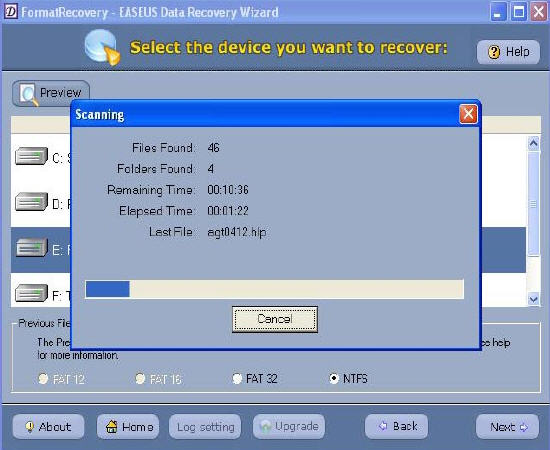
5.After this scanning is finished, you'll see file/folder tree.
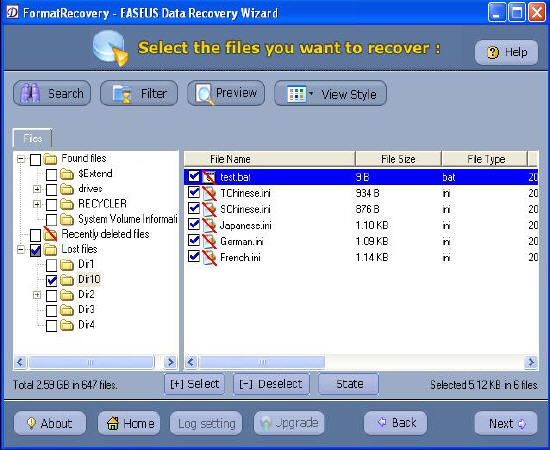
6. Select the file or directory that you want to recover and press the " Next" button.
7.Select a directory and press the " Next" button to save the data.
Note: If you have repartitioned your drive and the partition size has been changed or moved, use the "AdvancedRecovery" tool.
Caution: Saving file(s) to the partition or drive from where you are recovering data, for it may result in overwriting of data, and would result in permanent data loss!!!
First We recommend that you use professional partition recovery tool - Partition Table Doctor to recover missing or lost partitions.
Symptoms
Where previously the computer would boot and be usable, systems that have been Formatted often report the following errors: (these errors are frequently displayed on a black screen with white text.)
- Operating System not found
- Invalid or corrupt FAT
- Cannot find file or program
- Invalid command.com
- Primary/Secondary Hard disk failure
- Non system disk
- isk error
To recover files from formatted drives, please follow this procedure:
1. Click the Select "FormatRecovery" button on the main window of Data Recovery Wizard.
2.The first screen on the "FormatRecovery" tool will display a list of partitions found on the drives found in your system. If your partition is not listed, this is a sign of more severe corruption. You may need to select the "AdvancedRecovery" tool to recover your data. If you are trying to recover data from removable media, you need to have the media in the drive before selecting the "FormatRecovery " tool.
3. When you accidentally reformatted a partition you may have changed the partition type. The " Previous File System" radio box will allow you to select the previous file system type for your partition.
4. To begin a formatted recovery, select a partition and click "Next" to begin scanning for Files. Data Recovery Wizard analyses the drive data structures and file system attributes and displays the directory tree.
5.After this scanning is finished, you'll see file/folder tree.
6. Select the file or directory that you want to recover and press the " Next" button.
7.Select a directory and press the " Next" button to save the data.
Note: If you have repartitioned your drive and the partition size has been changed or moved, use the "AdvancedRecovery" tool.
Caution: Saving file(s) to the partition or drive from where you are recovering data, for it may result in overwriting of data, and would result in permanent data loss!!!

No comments:
Post a Comment